How to Create an Instagram Carousel That Gets Saves
To create an Instagram carousel that gets saves, pick one job for the post first, build every slide at 1080 x 1350 pixels, write a cover slide that makes one specific promise in eight words or fewer, and put one idea on each slide. Carousels are one of the best formats for earning saves: Metricool’s 2026 study of 24.3 million posts found that carousels generated nine times more saves than single images, and Socialinsider’s Q2 2026 benchmarks put carousel engagement at 0.50 percent, ahead of Reels at 0.48 percent and images at 0.33 percent.
What Is an Instagram Carousel?
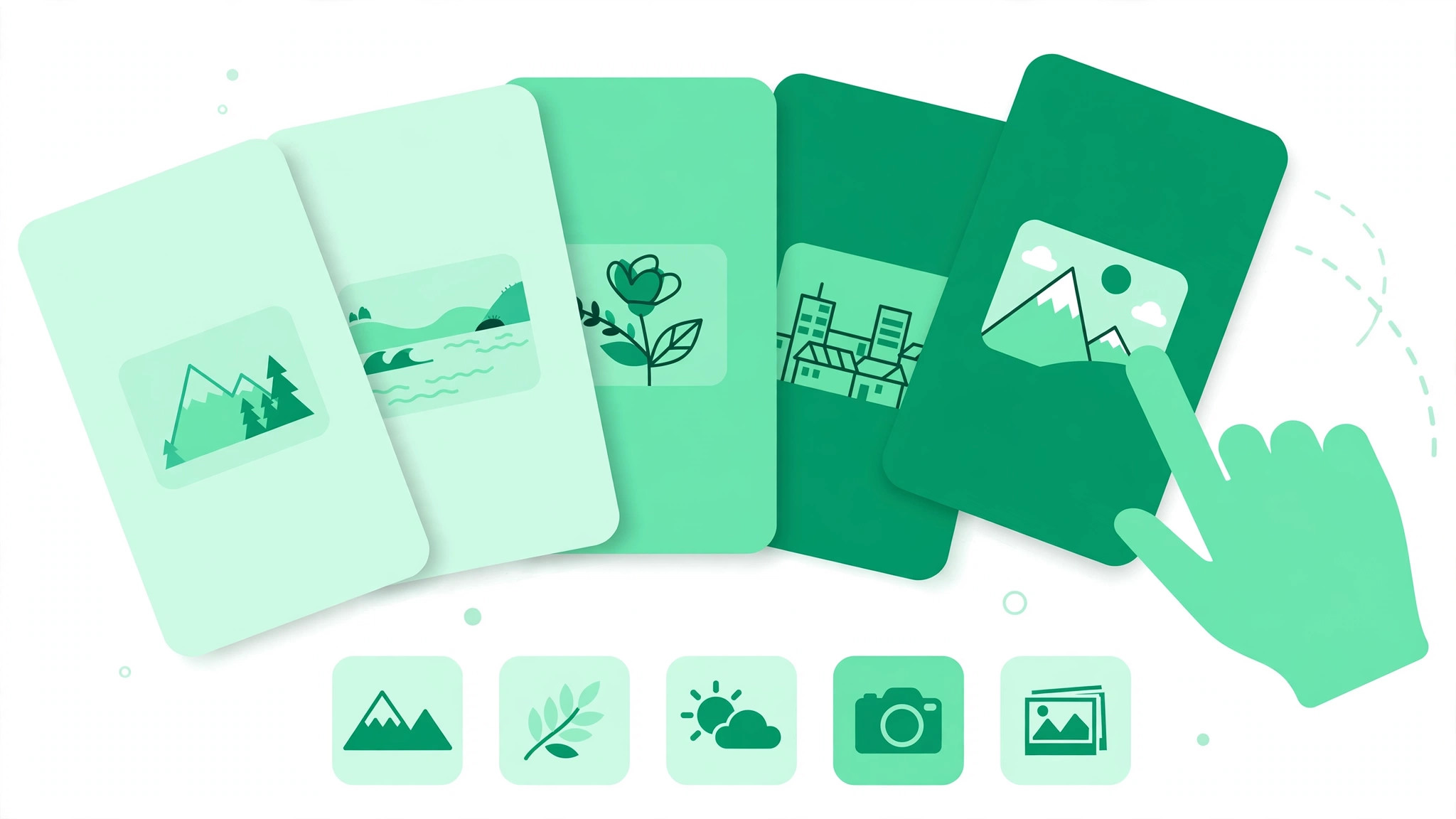
An Instagram carousel is a single post containing 2 to 20 photos or videos that people swipe through horizontally. Instead of one frame, you spread a story, tutorial, or list across several slides, and every swipe signals Instagram that the post is worth showing to more people.
Carousels also get a second chance: if someone scrolls past, Instagram may show the post again, starting at slide 2. That makes slide 2 a second cover.
Why Carousels Earn More Saves Than Other Formats
Saves happen when a post feels worth keeping for later. A single image can inspire or entertain, but a carousel can teach, guide, or solve a problem step by step. Checklists, tutorials, templates, and comparisons promise value readers return to.
Pair your carousel with the free Instagram growth tools on BigFollowers to support the post with the right hashtags and captions, and you give a strong format the finishing touches it needs.
Step 1: Pick ONE Job for the Carousel
Before you design anything, decide what you want the reader to do. A carousel can do one job well: earn a save or earn a send. Choose save for a checklist, tutorial, template, or step-by-step guide, since people save things they plan to use again. Choose send for a myth versus fact comparison, a relatable list, or a hot take people will want to share with a friend. Pick the job first: it decides your cover, structure, and final call to action.
Step 2: Write the Cover Promise in 8 Words or Fewer
Your cover slide is a headline, not a summary. It should make one specific promise in a second. “7 Hooks That Double Your Reels Views” works. “Some Tips About Instagram Growth” does not, because it promises nothing concrete.
Step 3: Design Slide 2 as a Second Cover
Instagram may resurface your carousel starting at slide 2 for people who scrolled past, so slide 2 needs to hook on its own. Treat it as a second cover: restate the promise from a new angle, show the first tip, or ask the question your carousel answers.
Step 4: Put One Idea on Each Slide
Every slide should carry exactly one idea, one tip, or one step. Crowding two or three points onto a slide makes it hard to read and easy to skip. Keep one layout across slides, with enough white space for the text to breathe. Build every slide at 1080 x 1350 pixels, the 4:5 portrait ratio, which fills more of the screen than a square post.
Step 5: Add a Recap Slide Before the Last Slide
After the tips or steps, add a recap slide that summarizes everything in one glance. A checklist of the key points gives readers a reason to save, and makes the carousel useful as a reference.
Step 6: End With ONE Action Only
Your last slide should ask for exactly one action: save or send. Asking for both splits the reader’s attention and weakens every ask. If the carousel’s job is a save, the final slide says “Save this for later” and nothing else.
Step 7: Write the Caption and Hashtags
The caption should expand on the carousel, not repeat it. Add context or the one detail that did not fit on the slides. A strong first line matters, since only the first line shows before the “more” cut. The Instagram caption generator can help you draft caption options that match your carousel’s tone, and the Instagram hashtag generator can help you find relevant hashtags for your topic.
A 10-Slide Carousel Example
Here is a 10-slide tutorial structure:
- Slide 1: Cover. One promise in eight words or fewer, for example “7 Hooks That Double Your Reels Views.”
- Slide 2: Second cover. Restate the promise or reveal the first hook.
- Slides 3 to 7: One tip per slide, each with a bold headline and two or three short supporting lines.
- Slide 8: A quick example showing one tip applied in real life.
- Slide 9: Recap. All seven hooks listed in one clean checklist.
- Slide 10: One call to action. “Save this for your next Reels session” and nothing else.
Adapt the slide count to your topic. A simple list can work in five slides; a detailed tutorial might need twenty. The structure stays the same: promise, proof, recap, one action.
How to Publish an Instagram Carousel
Publishing takes less than a minute once your slides are ready: tap Create, choose Post, tap Select multiple to switch on carousel mode, pick your slides in the order they should appear, then add your caption and hashtags and tap Share. Tap carefully: the order you tap is the order they publish in.
One useful update from March 2026: you can reorder slides after a carousel is published, but you cannot add a new slide to a published carousel, so double-check your slide count before you hit Share.
Common Carousel Mistakes to Avoid
- A vague cover. If the cover does not make a specific promise, nobody swipes.
- A weak slide 2. Instagram may show the carousel starting here. Make it count.
- Crowded slides. One idea per slide. If a slide needs a paragraph, split it in two.
- No recap slide. Without a summary, there is less reason to save.
- Too many calls to action. Ask for one action on the last slide, not three.
Frequently Asked Questions
How many slides can an Instagram carousel have?
A carousel can have 2 to 20 photos or videos. Most high-performing carousels use between 5 and 10 slides.
What size should carousel slides be?
Build every slide at 1080 x 1350 pixels, a 4:5 portrait ratio. This fills the most screen space in the feed and keeps text sharp on mobile.
Why do carousels get more saves than single images?
Carousels deliver step-by-step value people want to keep, like checklists and tutorials. Metricool’s 2026 study of 24.3 million posts found carousels generated nine times more saves than single images.
Can I edit a carousel after posting it?
Since March 2026, you can reorder the slides of a published carousel. You cannot add a new slide to a published carousel.