How to Use Instagram Live Producer (2026): Go Live from Your Computer
Wondering how to use Instagram Live Producer? It is Instagram’s desktop live tool on instagram.com. It gives you a stream URL and a stream key, you paste both into streaming software such as OBS, Streamlabs, or StreamYard as a Custom RTMP destination, then you start the stream from your software and go live from the Live Producer page. One detail matters most: the stream key refreshes every session, so copy a fresh one each time you go live. This guide covers the full setup, the recommended settings, the follower requirement, and the correct way to end a stream.
What Is Instagram Live Producer
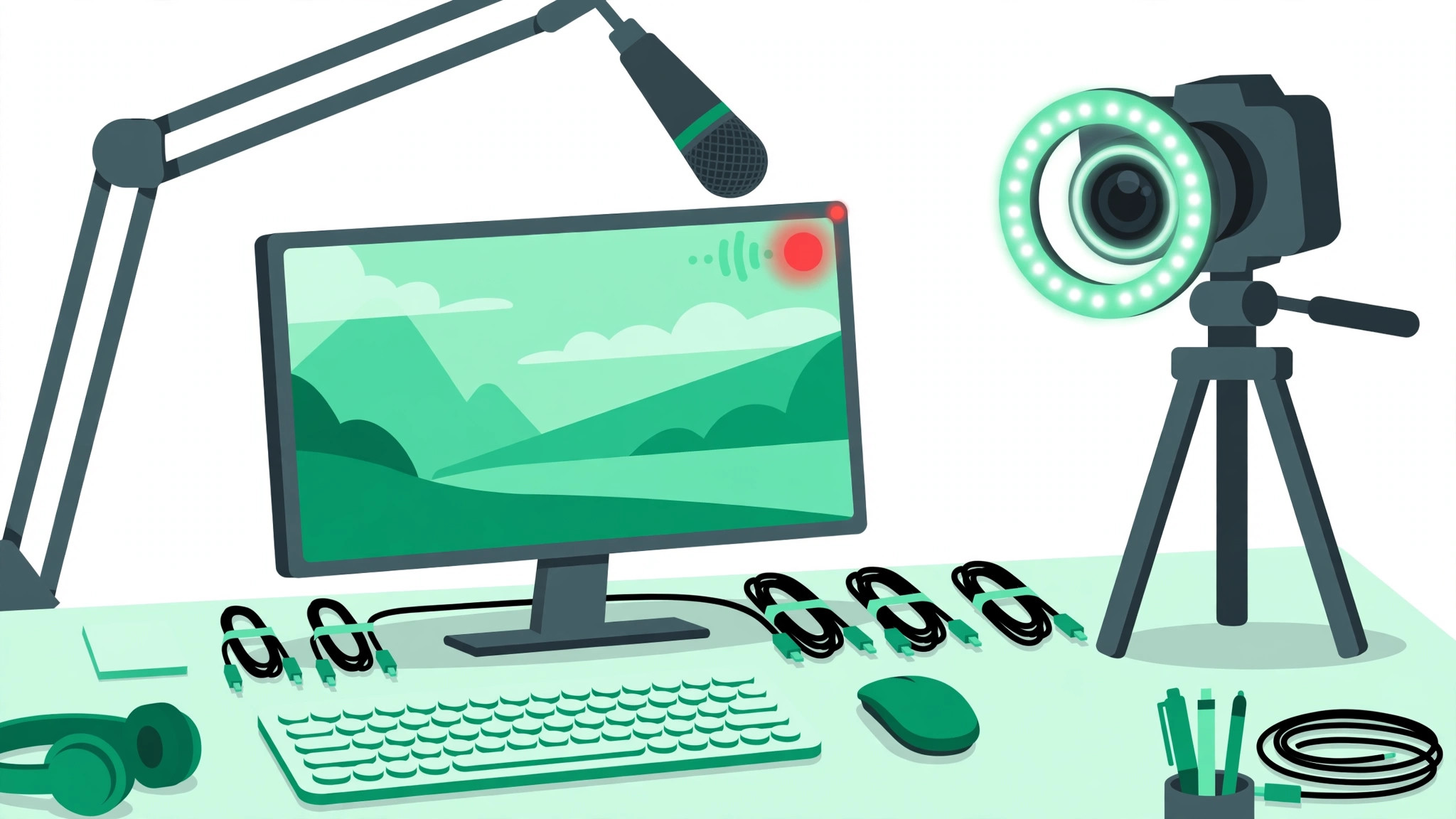
Instagram Live Producer lets you broadcast on Instagram from a computer instead of a phone. Going live from a phone limits what you can do. A desktop setup lets you use a proper camera, a real microphone, multiple scenes, overlays, screen sharing, and slides, all through streaming software that feeds into Instagram. Live Producer is the bridge: it sits on instagram.com, hands you the connection details, shows a preview of your stream, and gives you the Go Live button.
Live Producer is not streaming software on its own. It does not capture your camera or your screen. That job belongs to OBS, Streamlabs, StreamYard, or similar software on your computer. Live Producer only receives the stream and publishes it to Instagram. Your software does the production work, Live Producer opens the door, and Instagram delivers the broadcast. The workflow feels different at first, but the extra control is worth learning for interviews, tutorials, product demos, and longer broadcasts.
Who Can Use Instagram Live Producer
Check access first, because not everyone can use Live Producer. Since August 2025, you need a public account with at least 1,000 followers to go Live on Instagram. If your account is private or below that count, the live option will not be available. Check your follower count and privacy setting before you spend time setting up software.
Instagram still describes Live Producer as a limited access feature, with no published eligibility rule beyond the follower and public account requirements. In practice, some accounts that meet the stated requirements may still not see the option, while others do. There is no application form and no switch you can flip. If you do not have access yet, keep growing toward the threshold and check again later. Our guide on how to get more followers on Instagram covers the fundamentals that move the number. Make sure your profile is ready for new visitors before you go live, since a broadcast sends people straight to your profile. An Instagram bio generator can help you draft a clear bio fast.
How to Use Instagram Live Producer Step by Step
Once you have access, setup takes about ten minutes the first time and only a couple of minutes after that. Follow these steps in order.
- Open instagram.com in your desktop browser and log in to the account you want to go live from.
- Click Create, then choose Live video. This opens the Live Producer page.
- Add a title for your live video. Pick something clear, such as a topic, a guest name, or a question you will answer.
- Choose your audience. Practice means nobody sees the stream, which is ideal for a test run. Public means your followers can watch and join.
- Copy the stream URL and stream key shown on the page. Keep this key private. Anyone with it could stream to your account.
- Open your streaming software, such as OBS, Streamlabs, or StreamYard. Add a Custom RTMP destination and paste in the stream URL and stream key.
- Set up your scene: camera, microphone, slides, or screen share. Check audio levels and framing before you start.
- Click Start Streaming in your software. Check the preview in Live Producer to confirm video and audio look right.
- When the preview looks good, click Go live in Live Producer. Your broadcast is now public to your chosen audience.
Always run a Practice session first, especially before an important broadcast. A two-minute test catches most problems: muted microphones, wrong scenes, upside-down cameras, and bad lighting. Test with the same setup you plan to use live, because changing cameras or settings between the test and the real stream can introduce new issues.
Recommended Stream Settings for Instagram Live Producer
Instagram publishes recommended settings for Live Producer, and matching them gives you the smoothest broadcast. Use a 9:16 vertical video format at 720 by 1280 resolution, running at 30 frames per second. Set your video bitrate between 2,250 and 6,000 kbps. For audio, use 44.1 kHz stereo at up to 256 kbps. In your software, set the keyframe interval to 2 seconds, which is standard for live streaming. If your stream stutters, lower the bitrate toward the bottom of the range before changing anything else, since an unstable connection causes more damage than a slightly softer picture.
Vertical video deserves emphasis. Instagram Live is a vertical, phone-first experience, so a 9:16 frame fills the viewer screen. A horizontal 16:9 feed will look small and letterboxed on phones, where almost all live viewers watch. If your camera setup is horizontal by default, rotate or crop your scene to vertical in the software before you start. Do this in the test run, not during the live broadcast, because changing the canvas size mid-stream can break the feed.
Ending Your Live the Right Way
How you end the stream matters as much as how you start it. End the Live inside Live Producer first, then stop the stream in your software. That order is important. If you stop the software first, Live Producer keeps holding the last frame your software sent, and that frozen frame stays on screen for your viewers instead of a clean ending. Ending in Live Producer first closes the broadcast properly, and then stopping the software ends the connection with nothing left hanging. Make this a habit, and teach it to anyone who helps run your streams.
After the broadcast ends, save any recording your software made and review the first minute. That is where most problems show up: audio that starts too quiet, a camera that needed adjusting, or an intro that ran too long. A quick review after each stream is the fastest way to improve the next one.
What Live Producer Cannot Do
Live Producer is powerful, but it has clear limits. It does not support guests or Live Rooms, so you cannot bring another person onto the screen through Instagram itself. If you want a guest, bring them in through your streaming software instead, for example by adding them as a video call source in OBS or by using StreamYard, which handles guests natively and sends one combined feed to Instagram.
Live Producer also does not support Shopping, Fundraisers, question and answer sessions, or moderation tools. That means no product tags during a desktop live, no built-in fundraiser, and no native way to run audience questions or moderate comments from the Live Producer page. You can work around some of this with your software and a second device logged in to watch comments, but plan for it in advance. If shopping or guest features are essential, the mobile app may be the better choice for that stream. For free tools to support your Instagram growth around your live sessions, visit the free Instagram growth tools on our homepage.
Tips for a Better Desktop Live
A good desktop live is mostly preparation. Write a short run sheet: your opening line, three main points, and your closing call to action. Keep water nearby and your phone on silent. Light your face from the front, not from behind, and check your background for anything distracting. Use a wired internet connection if possible, since Wi-Fi drops are the most common cause of a choppy stream. Announce the live in advance with a Story countdown, and share a recap post afterward for people who missed it. Treat the first few minutes as a warm-up: greet early joiners by name, restate the topic, and give late arrivals a reason to stay.
Frequently Asked Questions About How to Use Instagram Live Producer
How many followers do I need to use Instagram Live Producer?
Since August 2025, you need a public account with at least 1,000 followers to go Live on Instagram, including through Live Producer. Instagram also describes Live Producer as limited access, with no published eligibility rule beyond that, so meeting the follower requirement does not guarantee the option appears immediately.
Do I need OBS to use Instagram Live Producer?
You need streaming software of some kind, and OBS is the most popular free option. Streamlabs and StreamYard also work. Live Producer only provides the stream URL and stream key, so the software handles your camera, microphone, scenes, and the actual broadcast feed.
Why does my Instagram Live Producer stream key keep changing?
The stream key refreshes every session, which is a security measure. Copy a fresh stream URL and key from Live Producer each time you plan to go live, and never reuse a key from a previous session or share it publicly.
Can I invite guests on Instagram Live Producer?
No, Live Producer does not support guests or Live Rooms. If you want a guest on screen, add them through your streaming software, for example as a video call source in OBS or through StreamYard, and send the combined feed to Instagram.