How to See Instagram Insights: Step-by-Step Guide for 2026
To see Instagram Insights, open the Instagram app, tap your profile picture, then tap Professional dashboard and See all insights. On desktop, go to instagram.com, select Dashboard from the left menu, then Insights. You need a public account, and you get account data for the past 90 days plus up to two years of data for individual posts, Reels, and Stories.
Instagram Insights is the platform’s free built-in analytics tool. It shows you who sees your content, how they interact with it, and whether your account is actually growing. If you are serious about growth, checking Insights regularly is non-negotiable. Here is every method to access it in 2026, what each metric means, and what to do when Insights will not show up.
What Are Instagram Insights?
Instagram Insights is a free analytics dashboard available to public accounts. It reports four groups of numbers: views, accounts reached, interactions, and follower trends. You can view account-level data for any date range inside the past 90 days, and drill into individual posts, Reels, and Stories for up to two years after posting.
Eligibility is simple: your account must be public. Professional accounts (business or creator) open Insights from the Professional dashboard, while public personal accounts use Your dashboard. Private accounts get nothing, so if Insights are missing, your privacy setting is the first thing to check.
How to See Instagram Insights on iPhone or Android
The app works the same on both platforms. Follow these steps:
- Tap your profile picture in the bottom right to open your profile.
- Tap Professional dashboard near the top of your profile. On a public personal account, tap Your dashboard instead.
- If you do not see the dashboard on your profile, tap the menu icon in the top right to open Settings and activity, then tap Insights under For professionals, or Your dashboard under Your insights and tools.
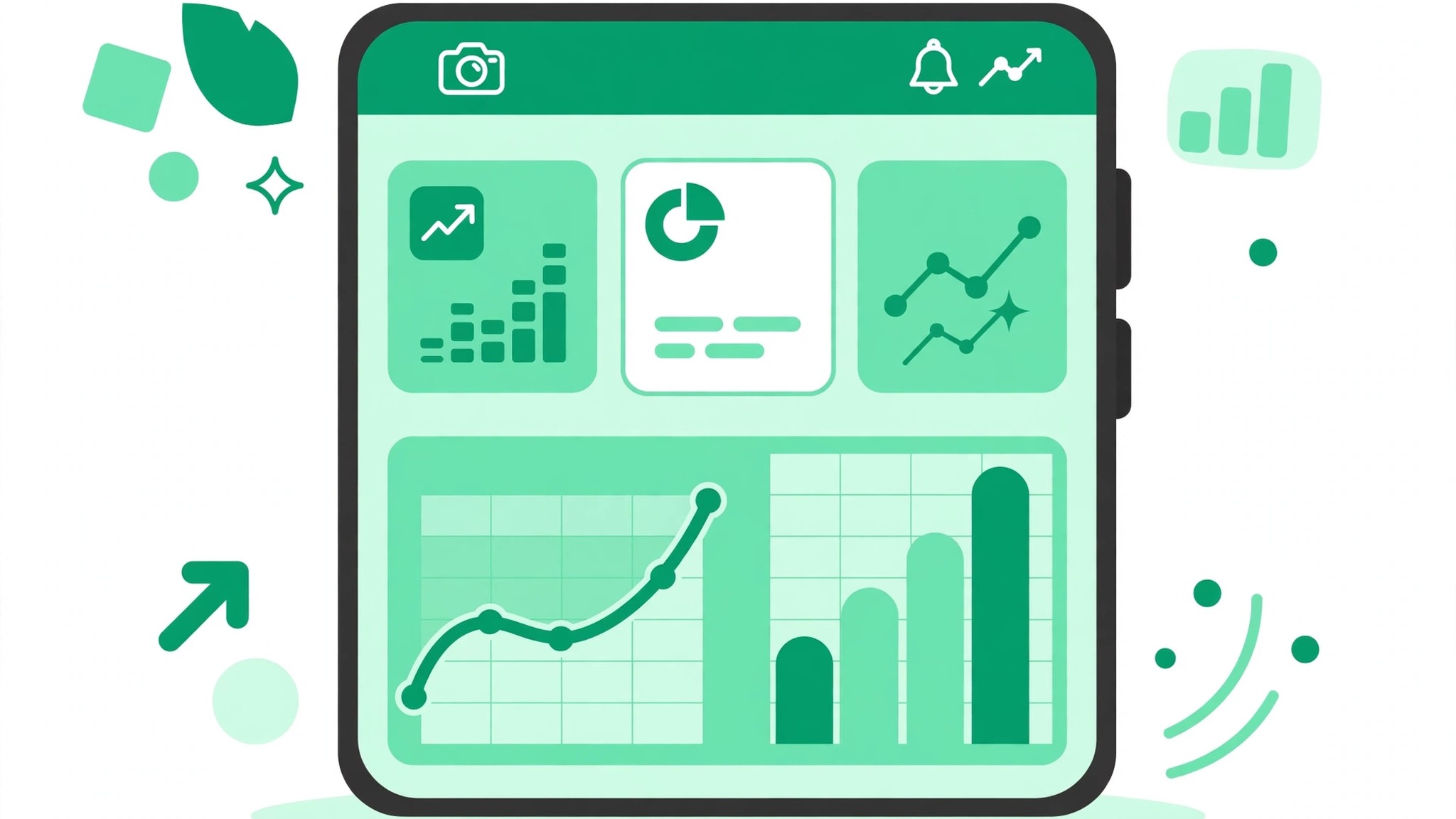
- The dashboard shows a 30-day summary of views, interactions, new followers, and content shared.
- Tap See all insights for the full analytics screen.
- Tap the date dropdown at the top to change the range. Instagram offers presets like Last 7 days, Last 14 days, Last 30 days, Previous month, and Last 90 days, plus a custom range.
Tap any section, such as Accounts reached or Accounts engaged, to open a detailed breakdown with charts.
How to See Instagram Insights on Desktop
You can access account-level Insights from instagram.com without touching your phone:
- On instagram.com, select Dashboard from the left-hand menu.
- If you have a professional account, select Insights under For professionals. On a personal account, select Your dashboard under Your insights and tools.
- Use the dropdown to switch between Account and Content views.
- Adjust the date range to Last 7, 14, 30, or 90 days, or pick a custom start and end date inside the past 90 days.
The desktop view is handy for comparing longer periods side by side and for exporting screenshots for reports.
How to See Insights for a Single Post, Reel, or Story
Posts and Reels
Open the post or Reel from your profile grid and tap View Insights underneath it. You will see views, accounts reached, content interactions, profile activity, and how many new followers that piece of content brought in.
Stories
Open the live Story and swipe up to see its Insights, including views, reach, replies, shares, and sticker taps. For expired Stories, go through your profile Insights and find them under the Content section.
Live videos
After a broadcast ends, open the replay and check its Insights the same way you would a Story, by swiping up or tapping the analytics option.
What the Key Metrics Actually Mean
Insights throws a lot of numbers at you. Focus on these four first:
- Views: Total times your content was watched. The top-line reach number.
- Accounts reached: Unique accounts that saw your content, split into followers and non-followers. A high non-follower share means the algorithm is pushing you outward.
- Interactions: Likes, comments, shares, and saves combined. Saves and shares carry the most weight for future distribution.
- Net followers: Follows minus unfollows in the period. This tells you whether your content strategy is actually growing the account.
Audience demographics, such as age ranges, gender split, and top locations, appear only after your content reaches or engages more than 100 accounts.
How to Use Insights to Grow: A Simple Monthly Routine
Data only helps if you act on it. Try this five-step routine each month:
- Pick a fixed range, such as the last 30 days, and keep it consistent month to month.
- Log the four account numbers in a simple spreadsheet to build your own baseline.
- Sort your content by format, then flag the top three and bottom three posts in each format.
- Look for what the winners share: topic, hook, length, posting day, caption style.
- Change one thing next month and check its effect the month after.
Once you know which posts pull in new followers, double down on those formats. To turn insight into growth with more followers, pair your winning content types with consistent posting. And when a post is clearly resonating, boost engagement on your best posts to push them further. New accounts can also use the free Instagram followers trial to build early social proof while Insights show you what content keeps those followers around.
Troubleshooting: Instagram Insights Not Showing
If you cannot find Insights, work through this checklist:
- Account is private: Switch to public in Settings, then Privacy.
- Using a personal account: Either keep it public and use Your dashboard, or switch to a professional account via Settings, then Account type and tools, then Switch to professional account.
- Menu labels changed: Instagram renames menus often. If Professional dashboard is missing, check under the top-right menu in Settings and activity.
- App is outdated: Update Instagram from your app store, then restart the app.
- New account with no activity: Insights need some posted content and reach before numbers appear. Post a few times and check back.
Instagram Insights FAQs
Are Instagram Insights free?
Yes. Insights are free for all public accounts, personal or professional. There is no paid tier.
How far back does Instagram Insights data go?
Account-level data covers any range inside the past 90 days. Individual posts, Reels, and Stories keep their Insights for up to two years.
Can I see Insights for someone else’s account?
No. You can only see detailed Insights for accounts you manage. Third-party tools that claim otherwise are estimating, not showing real data.
Why do my Insights show no audience demographics?
Demographics appear only after your content reaches or engages more than 100 accounts. Keep posting and the section will unlock.